 ArtUp Labs
 AR Room · ArtUp Labs app for Shopify
Product photos to 3D. Products in the shopper's room.
Turn the photos your products already have into 3D models, right in your Shopify admin. Shoppers place up to five products together in their room in AR and add the whole set to the cart.
- 14-day free trial
- Billing through Shopify
- Up to 5 products in one room
- Theme block, no code
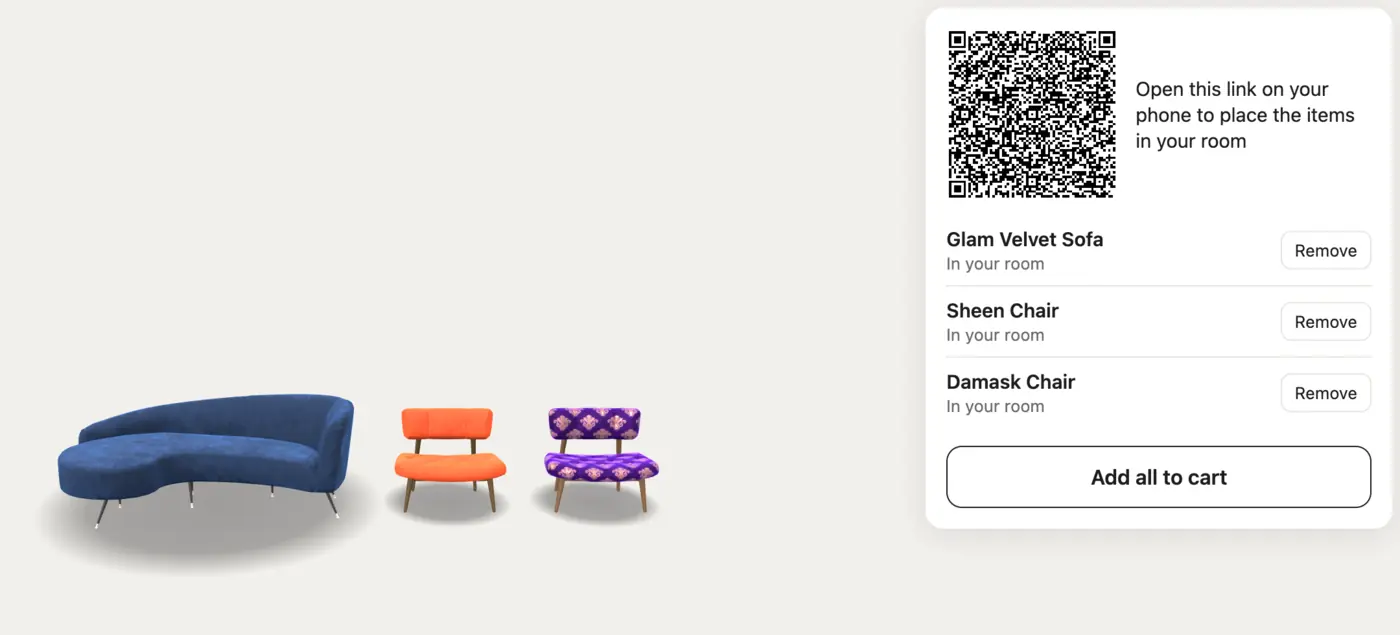
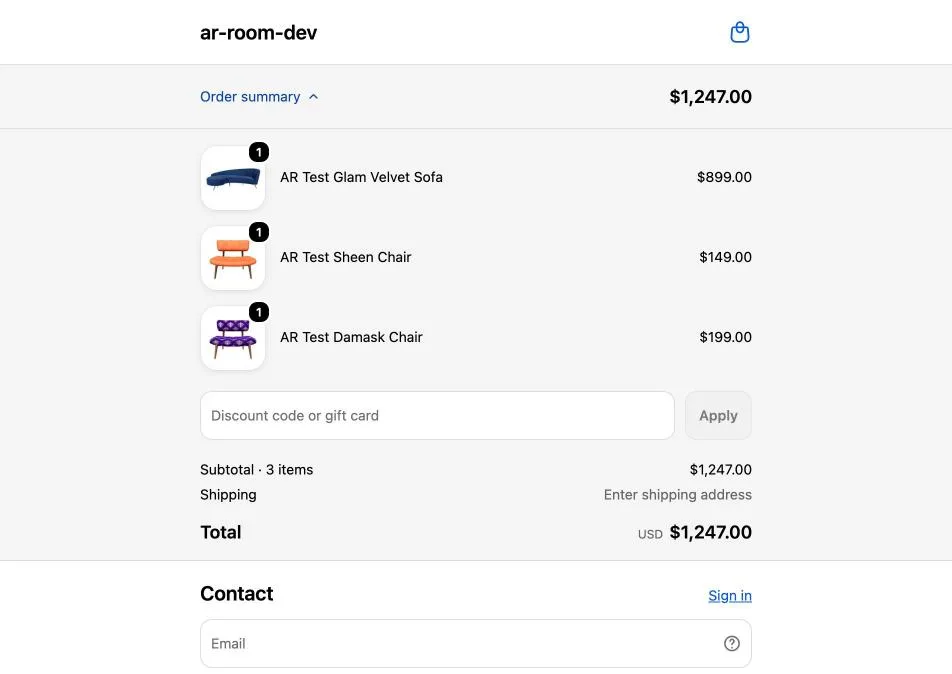
The shopper's room page with three products from our development store.

Scan to open the demo room on your phone
On Android with Chrome and ARCore the room offers AR: place the sofa and chairs on your floor.
How it works
From a product photo to an order with the whole set
You make the models in your Shopify admin; a theme block brings the room to your product pages.
-
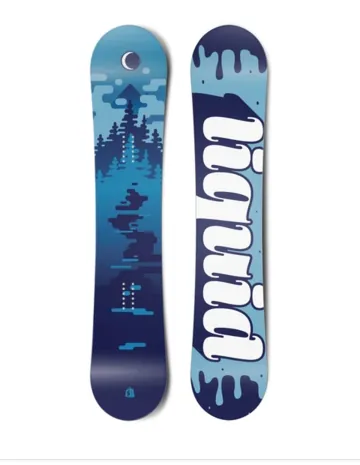 Product photo
The app uses the product's main photo from Shopify.
-
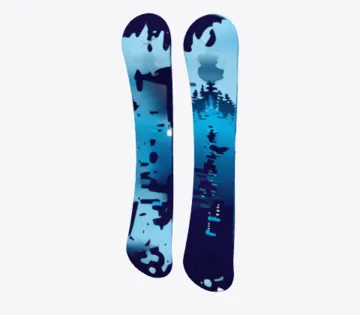 3D model
Generate 3D builds it, usually in about 3 minutes. You preview it in the admin.
-
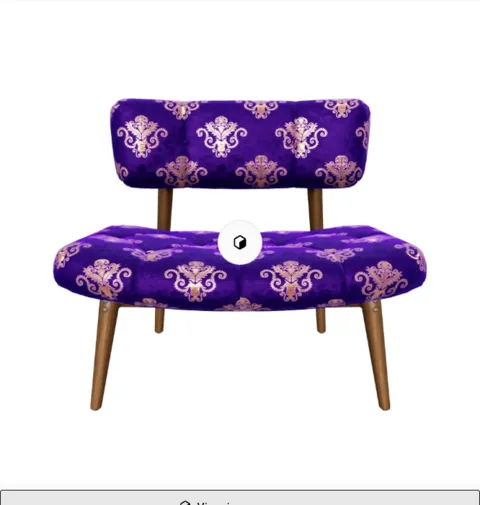 Product media
Accept adds the model to the product's media, scaled to the item's real height.
-
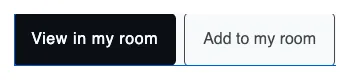 Two buttons
The theme block shows View in my room and Add to my room on products with a model.
-
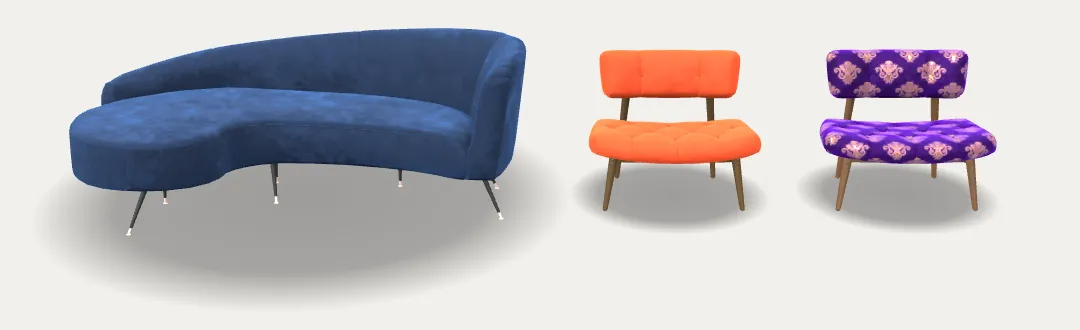 Shopper's room
Up to 5 products together in 3D, and in AR on Android.
-
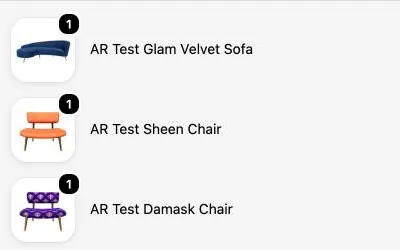 Cart
CartAdd all to cart opens your store's cart with every product from the room.
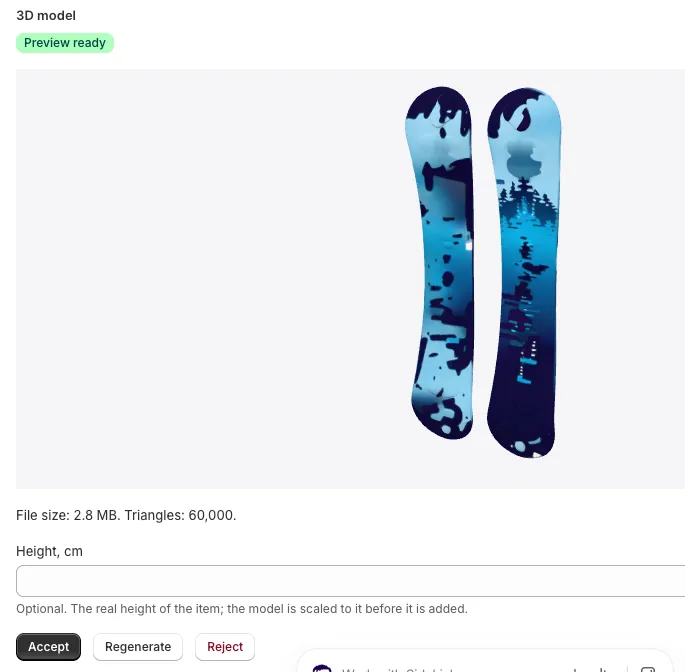
Screenshots from our development store. The snowboard model in step 2 is what the app generated from the photo in step 1.
For merchants
Everything happens in your Shopify admin
The app opens inside your Shopify admin; no separate login or account is needed.
A 3D model from the photo the product already has
The app's Products page lists your products with their 3D status. Open a product that has a photo and click Generate 3D. A single item on a plain background works best; a product without a photo shows No photo until you add one in Shopify.
- 13D model: 3D ready when the product has a model, Can generate when it has a photo.
- 2Generation: Preview ready, Failed or Rejected. The page updates on its own.
- 3Generate 3D starts a new model for the product.
- 4Your plan: generations left and a link to change the plan.
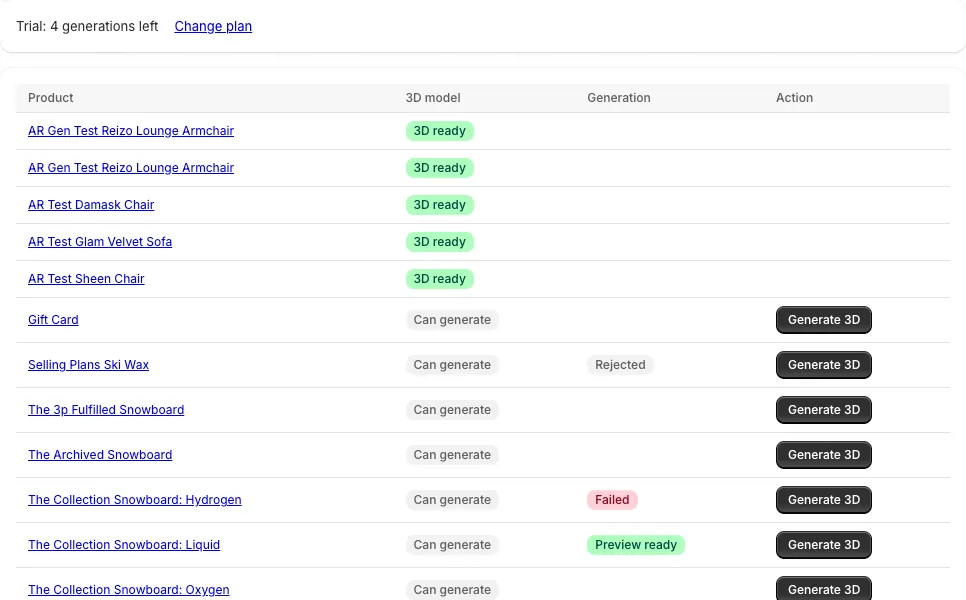 1234
1234Preview every model, then accept, regenerate or reject it
Nothing reaches your store until you accept it. Rotate the preview, set the real height and decide.
- 1Preview ready: the model is waiting for your review.
- 23D preview: rotate it to check every side.
- 3Height, cm (1 to 500 cm): the model is scaled to it, so the product appears at true size in AR.
- 4Accept adds the model to the product's media. Regenerate makes a new one (it counts as a new generation). Reject discards the preview.
 1234
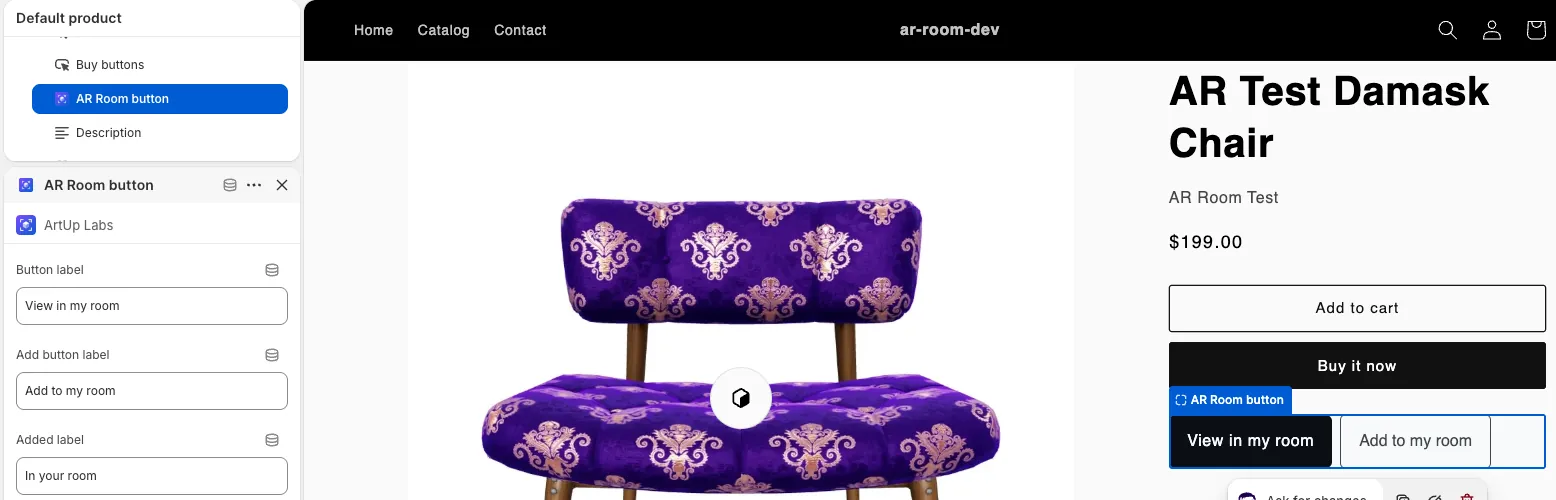
1234Two buttons on your product pages, no code
In the theme editor click Add block and choose Apps → AR Room button. Or use the button at the bottom of the app's Products page: it opens the theme editor with the block already added, so you only click Save.
- 1AR Room button: the app block in the product template.
- 2Block settings: the button labels and color.
- 3View in my room and Add to my room appear on products that have a 3D model and stay hidden on the others.
 123
123Photo → 3D
One photo in, a 3D model out
The app sends the URL of the product's photo to fal.ai, which builds the model; the app compresses it for the web. Here is a result you can rotate.


The photo is a CC0 image from The Metropolitan Museum of Art. In our tests the model was built from it by fal.ai Hunyuan 3D, the same generator the app uses. Results depend on the photo.
For shoppers
Several products together, then the whole set to the cart
The room page opens in the browser at artuplabs.com/room/. Nothing to install on Android or desktop.
- 1Add to my room on product pages collects products. The room holds up to 5 and is kept in the shopper's browser.
- 2View in my room opens the room page with the current product and the ones added before, in 3D.
- 3Shoppers move and rotate the products, place them on the floor in AR, or remove one.
- 4Add all to cart opens your store's cart with the products from the room.
Try the room yourself
A sofa and two chairs from our development store. Drag to look around, move the products, remove one.
Open the demo room
Scan with an Android phone to see the products in AR
Devices
Where shoppers see AR
Every device shows the room in 3D. AR depends on the device.
-
AR available
Android
Chrome on a phone or tablet with ARCore (Google Play Services for AR): the room page offers AR, so the products can be placed in the real room.
-
Pending Apple approval
iPhone and iPad
Support through the ArtUp Labs App Clip is rolling out (pending Apple approval); until then the room page shows the products in 3D without AR.
-
3D + QR code
Desktop
The room in 3D, with a QR code to open it on a phone. Other devices show the room in 3D without AR.
Setup
Set up in five steps
The app opens inside your Shopify admin. The guide walks through every step →
- Install the app.
Approve the access request in Shopify.
- Choose a plan.
Click Choose a plan, pick one on Shopify's plan page and approve it. Every plan starts with a free trial.
- Generate a 3D model.
Open a product with a photo and click Generate 3D.
- Check the preview and accept it.
Enter the real height and click Accept; the model appears in the product's media.
- Add the button to your theme.
Add the AR Room button block to the product template and save.
Plans
Pay for the models you make
Every plan starts with a 14-day free trial with up to 5 generations. Billing goes through Shopify, and you can change the plan in the app at any time.
-
Starter
$29 / month5 3D models included per month
- $2 per additional generation
- Up to 30 generations per month
- AR room with up to 5 products
-
Growth
$79 / month25 3D models included per month
- $2 per additional generation
- Up to 100 generations per month
- AR room with up to 5 products
-
Pro
$199 / month100 3D models included per month
- $2 per additional generation
- Up to 300 generations per month
- AR room with up to 5 products
- All plans include the AR Room theme block and the shopper room page.
- A store can run up to 10 generations per day (UTC).
- Regenerate counts as a new generation.
Data
Your store's data
The app keeps only what it needs to make models for your store. Privacy Policy →
- No shopper dataThe app does not collect personal data of your customers.
- Only the photo URLTo build a model, the URL of the product's photo is sent to fal.ai.
- Short storageGenerated model files are deleted from our storage within 14 days; accepted models live in your store's media.
- Deleted on uninstallAccess tokens are deleted right away; generation records and model files when Shopify sends the data deletion request.
- Narrow accessScopes:
read_products,write_products,write_files.
How does 3D generation work?
Open the app in your Shopify admin and go to Products. Open a product that has a photo and click Generate 3D. The product's main photo is sent to fal.ai, which builds a 3D model; we compress it and show a preview in the admin, usually within a few minutes. Enter the real height of the item in centimeters and click Accept: the model is added to the product as a 3D model in its media. If you don't like the result, click Regenerate or Reject.
What does it cost and what are the limits?
Starter $29/month with 5 generations included (up to 30 per month), Growth $79/month with 25 (up to 100), Pro $199/month with 100 (up to 300). Each extra generation is $2.
Every plan has a 14-day free trial with up to 5 generations. Billing goes through Shopify. A store can run up to 10 generations per day (UTC). Regenerate counts as a new generation. You can change your plan in the app at any time.
How do I add the button to my store?
In Shopify admin open Online Store → Themes → Customize, switch to a product template, click Add block, choose Apps → AR Room button and save. The block shows "View in my room" and "Add to my room" on products that have a 3D model. You can change the button labels and color in the block settings.
Which devices support AR?
- Android: Chrome on a phone or tablet with ARCore (Google Play Services for AR).
- iPhone and iPad: support through the ArtUp Labs App Clip is rolling out (pending Apple approval); until then the room page shows the products in 3D without AR.
- Desktop browsers show the room in 3D with a QR code to open it on a phone; other devices show it in 3D without AR.
How many products fit in one room?
Up to 5. Shoppers add products with Add to my room; the room is kept in the shopper's browser, and Add all to cart puts every product from the room into your store's cart.
How do I remove a generated model?
In Shopify admin open the product, select the 3D model in its media and delete it. The button disappears from that product. Model files in our storage are deleted automatically within 14 days.
What happens to my data when I uninstall?
We delete your store's access tokens right away. When Shopify sends the shop data deletion request after the uninstall, we delete all generation records and model files of your store. 3D models already added to your products stay in your store until you delete them. Details are in the Privacy Policy.
Do I need a separate account?
No. The app opens inside your Shopify admin, and billing goes through Shopify.
Questions about AR Room?
Email us with your store's myshopify.com domain and, if the question is about a product, its title. We reply within 2 business days.